SnapText
A macOS menu bar utility for OCR capture, clipboard workflows, and on-device translation.
SnapText is built around a single fast loop: trigger capture, OCR a selected screen region, copy the detected text to the clipboard, and keep the result in a snapshot history for reuse, editing, or translation. It runs as an LSUIElement menu bar app with no dock icon and keeps the workflow lightweight, local, and close to the clipboard.
At a glance
A menu bar-first OCR and translation workflow for people who regularly capture, clean, copy, and rework text from the screen.
- Platform
- macOS direct download
- Version
- 1.0.3
- Distribution
- Direct download from Gushi Studio
Core workflows
What SnapText helps with
Designed for practical, repeatable workflows with clear install and support paths.
Fast OCR capture
Use macOS region capture and Vision OCR to grab text from a selected screen area, then copy the result to the clipboard automatically after every successful snap.
History, editing, and formatting
Each snap is stored as a history item you can reselect, copy, translate, edit, delete, or clear. The editor supports newline-preserving, space-joined, or concatenated formatting.
On-device translation and automation
Translate locally with Apple’s Translation framework, check language-pack availability, and trigger OCR, clipboard, and translation actions through App Intents and Shortcuts.
Interface
Product views
Views from the main product workflow, including setup, usage, and day-to-day operation.
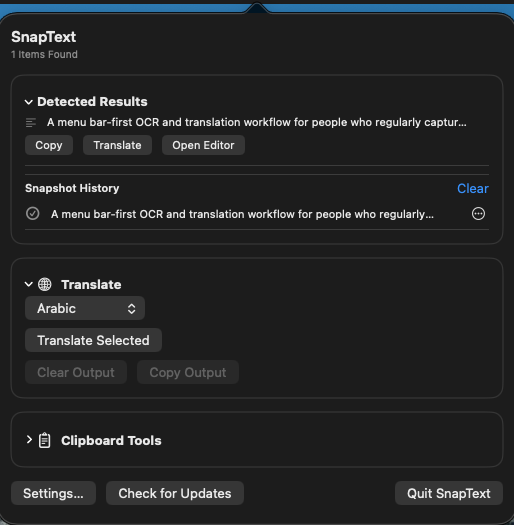
Capture and detect
View showing the SnapText capture flow from selected screen region to OCR result in the menu bar popover.
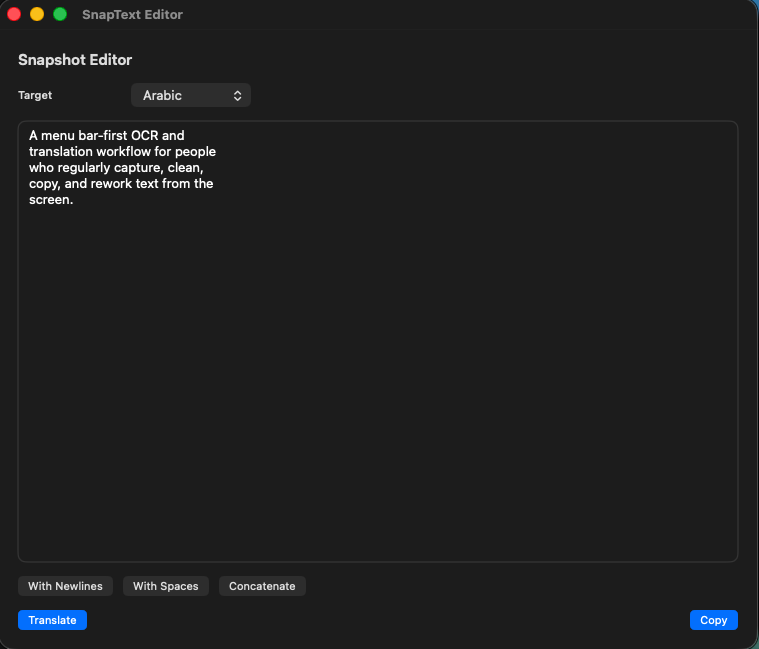
Snapshot history and editor
View showing saved snapshots with edit controls and text formatting options for newlines, spaces, and concatenation.
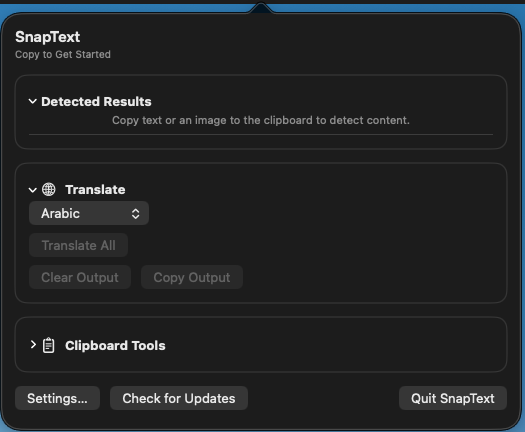
Menu bar empty state
View showing the SnapText empty state before OCR snapshots are created.
Install and support
Direct download and setup
Install from the DMG, complete first-run setup, and use the support notes if you need help.
Install steps
- Download the latest DMG and move SnapText into Applications.
- Launch SnapText and open Settings from the menu bar popover.
- Set your capture shortcut, then use it to trigger OCR from a selected screen region.
- If you plan to translate text, install any required Apple language packs from Language Settings.
Support notes
Install help
Install SnapText by downloading the DMG, moving it to Applications, and opening it once from Applications so macOS registers it correctly as a menu bar-only app.
How it works
Set a capture shortcut, select a region on screen, let SnapText OCR the image with Vision, and work from the detected result in clipboard, history, translation, or editor flows.
Translation and language packs
Translation uses Apple’s on-device Translation framework. If a source or target language pack is missing, SnapText can check status and take you directly to the relevant Language Settings screen.
Release status
Current build
Version and update status for the current public SnapText release.
SnapText direct download release. Version 1.0.3 is the current public build, with direct-download updates handled through Sparkle.
FAQ
Common questions
Practical answers to frequent setup and workflow questions for SnapText.
How does capture work?
SnapText uses macOS screencapture region selection together with Vision OCR. One snap produces one detected text item, even when the OCR result contains multiple lines.
Does translation happen on device?
Yes. Translation is built on Apple’s Translation framework and depends on supported language pairs plus the relevant installed language packs.
Does SnapText support Shortcuts?
Yes. The app exposes App Intents for OCR, clipboard operations, translation, previewing copied content, and performing named SnapText actions.