ScriptTray
A macOS menu bar app for collecting, organising, and launching project scripts.
ScriptTray is a menu bar-first macOS app for building a practical script library around the commands you actually run. You can save scripts manually or point ScriptTray at a project folder and let it discover importable entries from package.json, scripts folders, bin folders, and related project paths. Each saved script keeps launch behaviour, working path, and run-state context so recurring workflows are easier to reopen and rerun.
At a glance
A native-feeling workflow for keeping project scripts close, reviewing imports safely, and running commands in Terminal.app without rebuilding context each time.
- Platform
- macOS direct download
- Version
- 1.0.2
- Distribution
- Direct download from Gushi Studio
Core workflows
What ScriptTray helps with
Designed for practical, repeatable workflows with clear install and support paths.
Script library with project import
Create sections manually or import a project folder and review discovered entries from package.json, scripts/, script/, bin/, and tools/ before saving anything.
Terminal-aware launches
Launch saved scripts in Terminal.app, reuse a script’s dedicated window when possible, and rerun, cancel, reveal, or open the containing folder from the menu bar.
Import-safe and sandbox-friendly
Imported file-backed scripts keep their project root and security-scoped bookmark so ScriptTray can continue to access them reliably in sandboxed builds.
Interface
Product views
Views from the main product workflow, including setup, usage, and day-to-day operation.
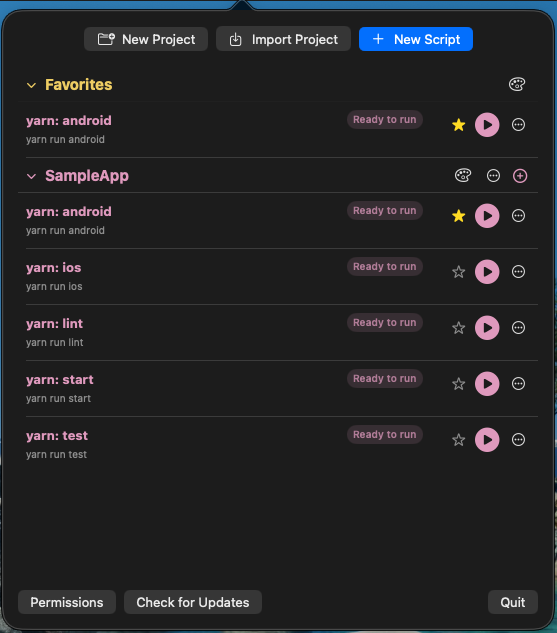
Project script library
View showing ScriptTray sections with saved scripts grouped by project and launch state.
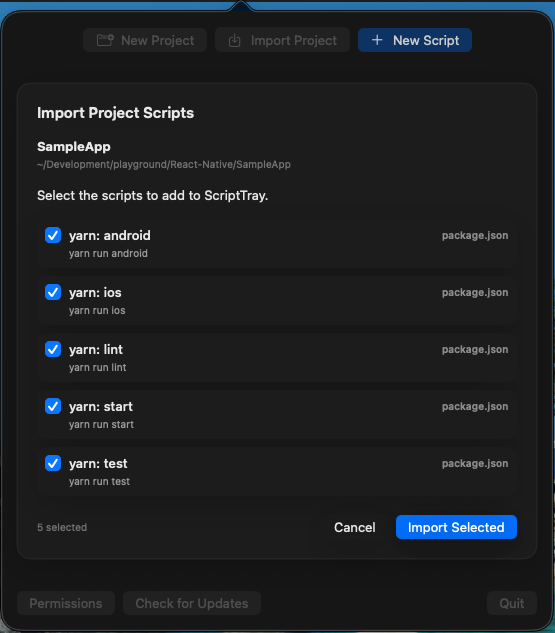
Project import review
View showing imported package scripts and discovered file-backed entries before they are added to ScriptTray.
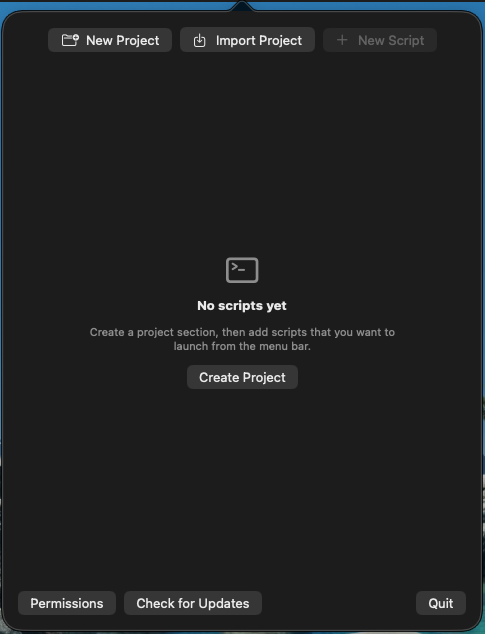
Script library empty state
View showing the ScriptTray empty state before scripts are added.
Install and support
Direct download and setup
Install from the DMG, complete first-run setup, and use the support notes if you need help.
Install steps
- Download the latest ScriptTray DMG and drag ScriptTray into Applications using the Applications shortcut in the installer window.
- Launch the app from Applications so macOS registers it correctly as a menu bar utility.
- Use the Permissions action before your first run so ScriptTray can control Terminal.app.
- Create a project section manually or import a project folder to start building your script library.
Support notes
Install help
Download the latest ScriptTray DMG, drag ScriptTray into Applications from the installer window, and launch it once from Applications. Before running scripts, allow macOS Automation access so ScriptTray can control Terminal.app and handle the interrupt fallback flow correctly.
How it works
ScriptTray is built around a script library. Add entries manually, import a project folder to review runnable scripts before saving them, then launch saved items into Terminal.app from the menu bar.
Permissions and updates
Script execution depends on macOS Automation permission for Terminal.app, and direct-download updates are configured through Sparkle. If automation access was denied previously, re-enable ScriptTray under System Settings > Privacy & Security > Automation.
Release status
Current build
Version and update status for the current public ScriptTray release.
ScriptTray direct download release. Version 1.0.2 is the current public build, with direct-download updates handled through Sparkle.
FAQ
Common questions
Practical answers to frequent setup and workflow questions for ScriptTray.
Does ScriptTray run scripts in Terminal.app or inside its own console?
ScriptTray v1 launches scripts in Terminal.app only. It keeps a best-effort mapping so the same saved entry can reuse its existing Terminal window when rerun.
What can ScriptTray import automatically?
It scans the selected project root for a root-level package.json plus common script folders such as scripts/, script/, bin/, and tools/, then lets you review discoveries before importing them.
How do updates work?
ScriptTray is set up for Sparkle-based direct-download updates. Automatic checks and automatic install flow can be enabled, and manual update checks are available from the menu bar UI.